NexFrame: AI Video Maker
- 0.0
- Rating
- 10.00K
- Installs
- Free
- Price
 Analysis by App-foxy
When I tried NexFrame: AI Video Maker, I approached it less like a full editing suite and more like a quick creative tool for turning a still image into something with movement. That distinction matters. The app is aimed at people who want an AI-assisted video result without spending a long time learning a timeline, keyframes, transitions, or complicated export settings.
It belongs to the Art & Design category and is developed by Psk extra. The basic download is free, although the app includes in-app purchases ranging from $1.99 to $99.99 per item. It is also marked for Mature 17+ users, so I would not treat it as a general children’s creativity app. NexFrame runs on Android 7.0 and later, and its current version is 1.0.0.
How I Decided Whether NexFrame Was Worth Using
My first question was simple: what kind of video do I actually need? If I want a polished project with precise timing, multiple audio tracks, detailed text animation, and manual control over every cut, an AI photo-to-video app is probably not the right starting point. If I want to give a portrait, product image, travel shot, or artwork a more dynamic presentation, the calculation changes.
You May Also Like

 AccuWeather: Weather Radar
AccuWeather Review: A Quick, Clear Forecast for Everyday Decisions
For everyday plans, the best forecast is the one you can understand quickly. AccuWeather makes rain timing, radar, and local conditions easy to act on, with a few trade-offs.

 Hill Climb Racing
Why Hill Climb Racing Still Turns Crashes Into One More Run
A tiny car, a bumpy hill and one more upgrade: Hill Climb Racing keeps resurfacing because its simple chaos makes every near-miss feel personal.

 AliExpress - Shopping App
AliExpress Makes Global Shopping Feel Personal, but Shoppers Bear the Risk
AliExpress turns a global marketplace into a pocket-sized discovery engine. Its reach is useful, its shopping loop compelling, and its trade-offs easy to miss.

 Lords Mobile: Kingdom Wars
Lords Mobile Is a Kingdom-Building Routine, Not a Quick Match
A case-by-case verdict on the building, battles, device demands, and social commitments that make Lords Mobile rewarding for some players and exhausting for others.

 PDF Scanner app - TapScanner
TapScanner Makes Paperwork Easier to Capture, Check, and Share
TapScanner makes scanning with a phone feel less like a rescue operation and more like a dependable step in getting work done. Its capture tools are useful, though not flawless.

 Block Blast!
Block Blast! Shows How Much a Puzzle Game Can Leave Out
A quiet grid game shows why puzzle players increasingly value instant clarity, repeatable skill and low-pressure play—and where the genre still needs to catch up.
More From Our News Desk
View All News


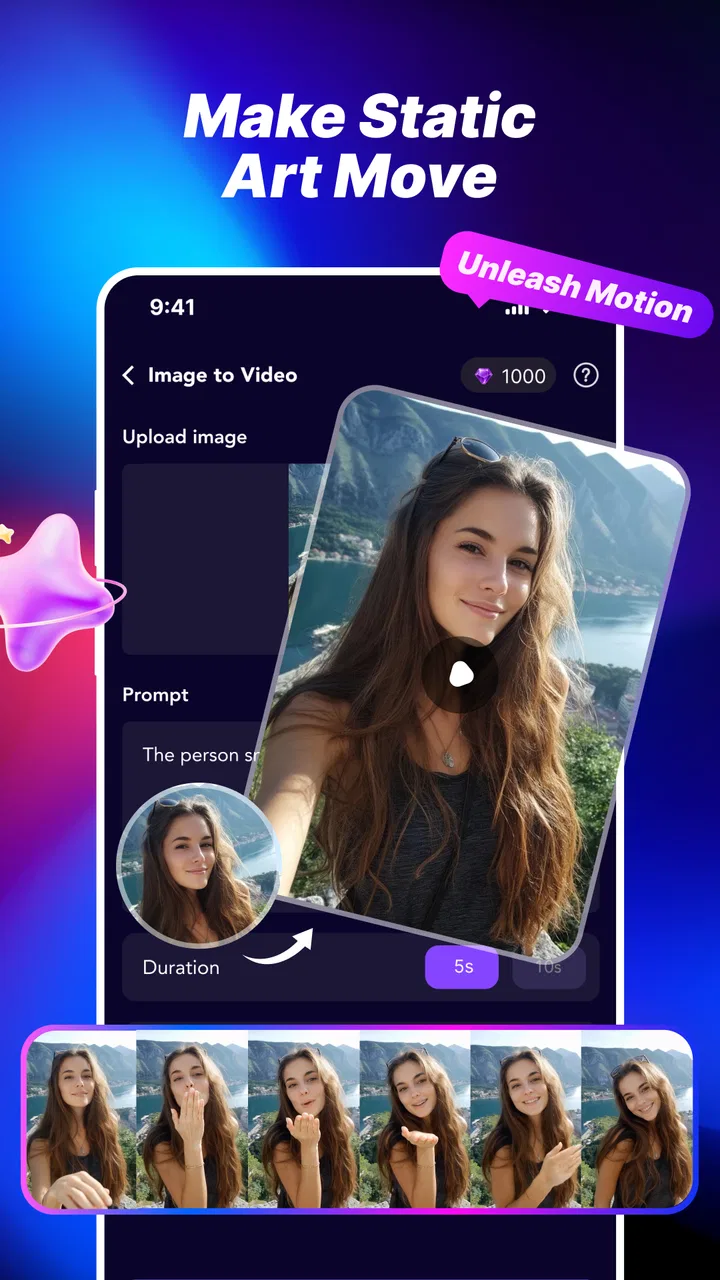
NexFrame makes the most sense when speed is more important than fine control. Its central idea is straightforward: choose a photo, select a creative direction or template, and let the app create a short video treatment. That workflow removes much of the technical work that usually makes mobile video editing feel slow. I found the appeal strongest when I had an image I liked but no desire to build an entire sequence around it manually.
The decision also depends on how much experimentation you enjoy. Template-driven creation can be useful because it gives you a starting point, especially when you are unsure how to animate an image. At the same time, a template can guide the result so strongly that the final video may feel less personal than something built from scratch. I would choose NexFrame for rapid visual ideas, not for absolute authorship over every movement.
Another practical question is the source material. A clear, well-composed photo gives an AI video tool more to work with than a blurry image or a crowded scene. Before importing anything, I would crop the picture intentionally and remove distracting borders. This small preparation step can make the generated motion look more deliberate, even though the app is doing the animation work.
What the One-Tap Approach Is Really Good For
The one-tap concept is most useful in situations where the image already carries the message. A restaurant owner might want a quick visual post from a food photograph. Someone preparing a birthday message could animate a favorite portrait. An artist could turn a finished illustration into a short presentation clip instead of posting a static image alone. In each case, the goal is not a complete film; it is a more active way to present one visual.
I also see value for people who rarely edit video. Traditional mobile editors often present a timeline immediately, which can be intimidating if all you want is a result for social sharing or a personal message. NexFrame lowers that first barrier by making the initial creative decision about the photo and the style rather than about editing mechanics.
There is a useful workflow here for testing ideas quickly. I would make several versions from the same image, changing the creative template rather than repeatedly rebuilding a project. The important insight is that the photo and the treatment should be evaluated together. A calm portrait may suit a restrained motion effect, while a colorful illustration may benefit from a more energetic template. The best result is not automatically the most dramatic one.
Where NexFrame Has the Advantage
NexFrame’s clearest strength is the short path from still image to video. I did not need to begin by arranging clips, trimming footage, or learning a collection of editing controls. That makes it approachable for casual creators and useful when an idea needs to be visualized quickly.
The template angle is another advantage. A blank editor asks me to make many decisions before I see anything: how long should the movement last, where should the emphasis go, and what kind of rhythm fits the image? A creative template provides a more immediate answer. Even when the first result is not perfect, it can reveal a direction that I might not have considered on my own.
This is especially helpful for personal content that would otherwise remain unfinished. I often have photos saved on a phone that are good enough to share but not compelling enough to become a full editing project. A fast AI treatment gives those images another possible use. The app is therefore less about replacing professional editing and more about making small creative projects easier to complete.
There is also a psychological advantage to reducing the number of controls. Too many options can turn a simple post into an hour of adjustments. NexFrame encourages a faster decision: select an image, try a style, inspect the result, and keep or rethink it. For users who tend to abandon projects in complicated editors, that simplicity may be more valuable than a long feature list.
Three Workflows That Make It More Useful
My first recommended workflow is to prepare a small set of related images rather than relying on one random photo. For a travel memory, I would choose pictures with a similar color mood and create separate short treatments, then select the one that best communicates the atmosphere. This avoids forcing one image to carry more meaning than it can support.
The second is to use the app as a visual sketchbook. Before committing to a longer manual edit elsewhere, I would test a few template directions in NexFrame. If one treatment immediately feels right, it can guide a later project. If none works, I have learned something about the image without spending a long time on a timeline.
The third is to keep the original photo untouched and treat each generated video as a separate experiment. That matters because AI-assisted transformations are easier to compare when the source remains available. It also prevents a temporary creative choice from replacing the image you may want to use in another context.
I would also pay attention to the difference between a visually impressive preview and a useful finished post. A strong effect can distract from a product, face, or piece of artwork. For practical content, I would favor the template that keeps the subject readable. The most animated result is not necessarily the most effective one.
Where a Traditional Editor Fits Better
NexFrame is not the obvious choice for someone who already enjoys detailed mobile editing. A conventional video editor is better when I need to combine several clips, control exact in and out points, place captions at precise moments, adjust audio, or build a sequence with a clear beginning and end. Those tasks require a timeline and direct manipulation, not just a template-based transformation.
It is also less suitable when consistency across a large batch is important. If I were preparing many branded videos that must share exact typography, pacing, and layout, I would want a tool designed around repeatable manual settings. NexFrame may help generate ideas, but a more controlled workflow would be safer for work where every output needs to match.
Dedicated animation apps may also be preferable for illustrators who want to define movement themselves. AI assistance can be convenient, but it does not replace the satisfaction or precision of drawing motion frame by frame or setting individual animation paths. The right choice depends on whether I want the software to interpret the image or whether I want to direct the movement personally.
There is a similar distinction with slideshow makers. If the purpose is to tell a chronological story with many photos, captions, and music, a slideshow-focused app may provide a clearer structure. NexFrame appears more naturally suited to giving individual images a creative video treatment than to managing a long, carefully ordered album.
Questions I Would Ask Before Installing
Can a beginner use it? Yes, that is where the app’s concept is most convincing. Someone who understands how to select a photo and compare visual styles should be able to explore it without first studying video-editing terminology. The simplicity does not guarantee that every generated result will be perfect, but it lowers the learning barrier.
Is it free? The app is available as a free download, while optional in-app purchases are listed from $1.99 to $99.99 per item. I would therefore install it first to understand the free experience before deciding whether any paid option is worthwhile. Users who dislike trial-and-error spending should pay close attention to purchase prompts during creative experimentation.
Will it replace a full editor? In my view, no. It is better understood as a fast companion for image-based video ideas. It can help when a static picture needs more energy, but it is not the tool I would choose for a complex production that depends on exact edits and a carefully managed soundtrack.
Is it suitable for everyone? The Mature 17+ content rating means families should not assume it is appropriate for younger users. I would check that rating before installing it on a shared device or recommending it to a teenager. That is an important part of the decision, separate from the app’s creative usefulness.
Will it work on an older phone? The stated minimum is Android 7.0, which gives it a relatively broad compatibility range among Android devices. Even so, AI video creation can feel demanding on a phone with limited storage or performance. I would keep enough free space available for source images and generated projects rather than treating the minimum operating system as a promise of identical performance on every device.
The Cost of Changing Your Workflow
Switching from a normal editor to NexFrame is easy if the main habit you want to change is speed. You can keep your usual photo library and begin with a single image instead of learning a new production method. The larger adjustment is mental: you give up some direct control and accept that the app’s creative interpretation is part of the result.
For someone moving in the opposite direction—from NexFrame to a full editor—the cost is time and attention. You will need to make decisions that the template workflow handles for you. That can feel slower, but it also gives you more control over pacing, structure, and consistency. I would not switch simply because a manual editor has more features; I would switch when those features solve a real problem in the project.
The purchase model adds another consideration. A free starting point is helpful for testing the concept, but the range of optional item prices means I would decide on a personal spending limit before exploring heavily. The sensible approach is to judge the quality and usefulness of the free workflow first, then consider whether paid items genuinely improve the kind of videos you plan to make.
There is also a small switching cost in organizing expectations. NexFrame can make a photo feel fresh, but it cannot turn every ordinary image into a meaningful story. Better source photos, a clear purpose, and restrained template choices will usually matter more than repeatedly generating effects. I would use the app selectively rather than applying motion to every picture in my gallery.
Who Should Try It and Who Should Skip It
I recommend NexFrame to casual creators, social media users, artists presenting finished work, and anyone who wants to experiment with AI-assisted motion without opening a complicated editor. It is particularly appealing when the desired outcome is a short, eye-catching visual made from one strong image.
I would also recommend it to people who often have ideas but stop when the technical work begins. The quick template workflow can turn a vague thought into a visible draft. That alone makes it useful, even if the final result later needs refinement in another app.
I would skip it if my priority were professional-level control, detailed audio editing, multi-clip storytelling, or exact brand consistency. I would also be cautious if I were looking for a tool for children, because the Mature 17+ rating does not fit that use case. In those situations, a conventional editor or a more age-appropriate creative app would be a better match.
My Recommendation After Testing the Concept
NexFrame is worth trying when I want to move from a photo to a creative video quickly and I am comfortable letting templates and AI assistance shape part of the result. Its strongest value is not that it replaces every other video tool; it is that it makes a narrow but useful task feel approachable.
The app’s free entry point makes experimentation reasonable, while the optional purchases mean I would explore carefully before spending. I would prepare good source images, compare treatments instead of accepting the first dramatic result, and keep a full editor available for projects that need precision.
My final recommendation is clear: choose NexFrame for fast visual experiments, personal posts, and image-led creative ideas; choose a traditional editor when control, structure, and repeatability matter more than convenience. With that expectation, Psk extra’s Art & Design app can be a practical addition to an Android creator’s toolkit rather than an overpromised replacement for every editing app.
FAQs for NexFrame: AI Video Maker
01What is NexFrame: AI Video Maker, and what can I use it for?
NexFrame: AI Video Maker is designed to help users create short videos with artificial intelligence, even without advanced editing experience. It can be useful for social media posts, promotional clips, presentations, storytelling, and personal projects. Depending on the available tools, you may be able to combine text prompts, images, music, templates, and automated effects into a finished video.
02Do I need professional video-editing skills to use NexFrame?
No. NexFrame is aimed at making video creation more accessible to beginners by simplifying tasks such as arranging media, applying visual effects, adding captions, and choosing a suitable format. The automated features can save time, although you may still need to review the generated result and make manual adjustments to timing, wording, transitions, or audio before exporting a polished video.
03Is NexFrame: AI Video Maker free to download and use?
The application may be available to download at no initial cost, but some AI tools, templates, export options, or premium resources can require in-app purchases or a subscription. Before creating a large project, check the pricing page and subscription terms carefully. Also review whether the free version adds watermarks, limits video length, restricts resolution, or includes daily generation credits.
04Can I use my own photos, videos, music, or text in NexFrame?
AI video makers commonly allow users to import personal media and provide text or creative instructions, but the exact supported formats and available features can vary by device and app version. Make sure your files meet the application’s size and format requirements. You should also use music, images, and footage that you own or have permission to use, particularly when publishing videos commercially.
05Does NexFrame require an internet connection, and is my content private?
AI generation usually depends on cloud processing, so an internet connection may be necessary for creating videos, downloading templates, or exporting certain projects. Because uploaded content or prompts may be processed on remote servers, read NexFrame’s privacy policy before submitting sensitive photos, documents, or personal information. Check account, storage, and deletion settings if you want greater control over your projects and data.
Pros
- Creates polished videos quickly from simple text prompts.
- Offers ready-made templates for social media content.
- AI-generated visuals reduce the need for filming equipment.
- Useful for short promotional clips
- reels
- and presentations.
- Simple interface makes basic editing accessible to beginners.
Cons
- AI results may require several attempts to match your idea.
- Advanced editing controls can feel limited for professionals.
- Export quality and options may depend on the selected plan.
- Some templates and assets may look repetitive over time.
- Processing can take longer when generating complex videos.

NexFrame: AI Video Maker
Gallery